Yehor Sencha
Still use arrows to navigate code? You are missing out
I am happy to introduce you to be the best approach to navigate edit code I found so far. It was a struggle that in order to use arrows, HOME, END and some other keys in their default position on a keyboard, because I had to move my hand too ofter. So, I came up with the idea to eliminate redundant hand movement as much as possible. The main purpose of the guide is to make you think in the right direction, feel free to alter any particular keybind as you like, but I will provide some foundation to build upon.
I used a concept called “layers” in world of programmable keyboards - you can think of SHIFT to be a key that toggles a layer, giving access to capital letters and so on. As I grew from windows-oriented keyboard, I started using left ALT key to function as “layer switch”, binding nessesary key to be some combination of left ALT + SOME_KEY. This is the main point of the guide - to suggest you start using the same approach. In the text below by binding, for example, HOME to letter H, I will mean that HOME key is sent to the computer, when THE_KEY_YOU_WILL_CHOOSE_TO_TOGGLE_LAYER + H is pressed.
Let’s start with arrows. The goal was to minimize hand movement using common navigation keys. I chose my right hand default position (index finger on J) as anchor point. This is because I find the most comfortable to use my left thumb to press KEY_I_CHOSE_TO_TOGGLE_LAYER (left ALT originally) and you will probably feel the same. From there I decided to bind move one word forward and move one word backward to letters K and L. This is the crucial tip, as I barely need to navigate per-symbol, and binding to [option + (left/right) arrow] for macOS or [ctrl + (left/right) arrow] for Windows, makes movement between words in a line so much more convenient and fast. This is truly game-changing approach and I am dead sure it will make your worksflow much more enjoyable. Then, I bind arrow up to I and arrow down to O. These are two keys that are very easy to reach and this binds seem logical to me.
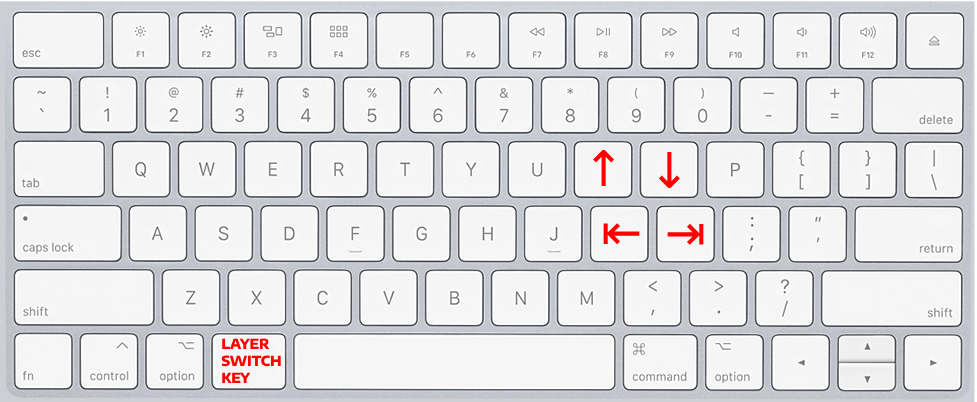 Despite per-symbol movement being used less often, we still need it. This particular keybind is a little bit trickier, as there are two ways to bind them. Here I cover basic variant, but an advanced one will be in implentation. We need to place them relatively close to default hand positon, but can afford to move our fingers further in order to reach them. So, I suggest to use
 U for LEFT_ARROW and P for RIGHT_ARROW.
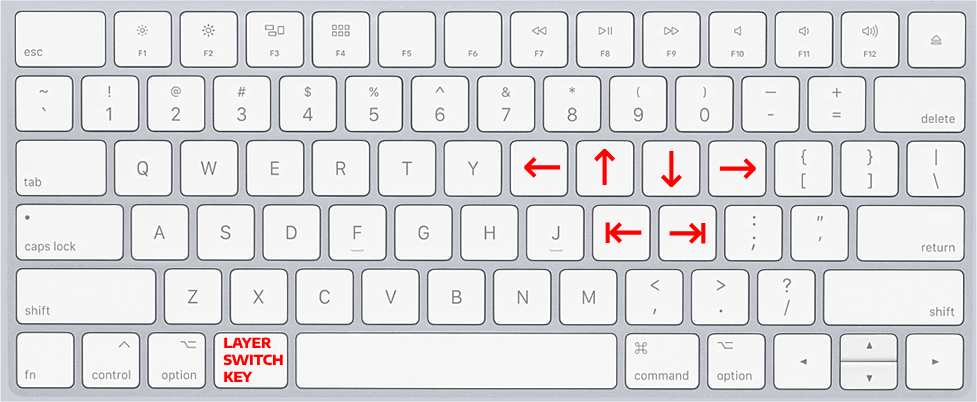 Here we got to second group of keys I use the most:
 HOME and END. They are usually placed very far from default hand position on. So, I bound END to J, as i use it very often and J requires no movement from default hand position. Then, I bound HOME on H, as it is still quite close to default hand position but further that J - because I use END more often than HOME. Plus it seems logically appealing to bind H (on the left - HOME - cursor moves to the left) and J (on the right - END - cursor moves to the right).
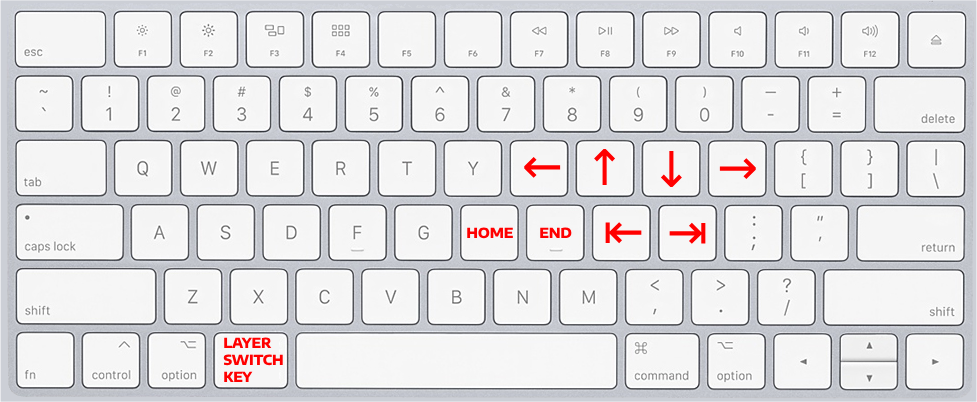 That is it for the very basics, and it is the perfect start into improving your code editing and navigation. I will cover more advanced bindings in later articles, so you might follow not to miss it.
Implementation
Summing up, you will need to setup 2 group of keys:
UP/DOWN/RIGHT/LEFTarrows andMOVE ONE WORD FORWARD/MOVE ONE WORD BACKWARD, choosing shortcut according to your system.HOMEandENDkeys
For MacOS
I found Karabiner + Goku to be the best option for system-wide shortcuts, plus it seems to be quite explicitly configurable. Here is some example setup and some pitfalls discussed.
Another option is to use IDE shortcuts, but you might get overlaps with some system COMMAND + KEY shortcuts, if you choose to use LEFT COMMAND to be LAYER_SWITCH_KEY. There is a workaround, switching COMMAND and OPTION keys inputs with each other, but it will be system-wide, so you’ll need to get used to new keys positions. Also, you will need to disable special symbol inputs with OPTION + KEY, modifying ~/Library/Keyboard Layouts/, here is an easy solution I tried.
For Windows
DreymaR’s Big Bag Of Keyboard Tricks - EPKL is a superior option over all other windows alternatives. It provides deep customization, but it comes at a cost of added complexity, but nothing too geeky. Big plus is having a pre-made layer that is quite close to what i propose to use, so you do not have to start everything from scratch.
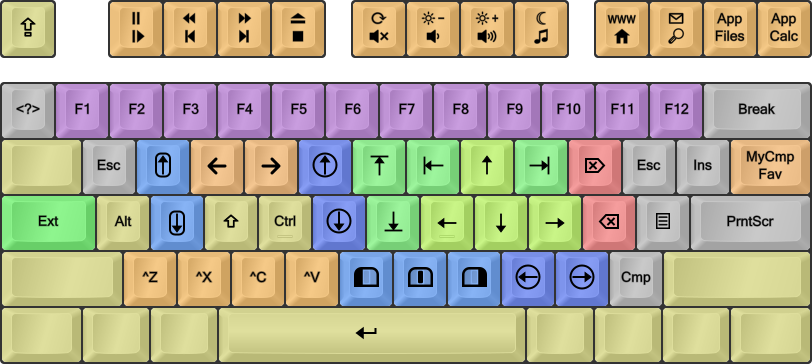
If you are not ready to commit that much yet, it is still possible to just use IDE shortcuts. They are easy to setup, as ALT + KEY do not override any system shortcuts.
Advanved LEFT/RIGHT arrows binds
I find it more logically appealing and overall easier to use when I have mine LEFT arrow / RIGHT arrow directly under MOVE ONE WORD FORWARD / MOVE ONE WORD BACKWARD. It can either be done either via having additional layer in corresponding software, or by using some additional modifier key in IDE shortcuts, like having Ctrl + THE_KEY_YOU_WILL_CHOOSE_TO_TOGGLE_LAYER + THE_KEY_TO_MOVE_ONE_WORD_FORWARD. But it might get tricky to select text per-symbol, in case with choosing IDE shortcuts, so I do no recomment doing so.